Adding products one by one works for a handful of listings, but brands with dozens or hundreds of products need a faster way. Bulk upload lets you create or edit many listings at once using spreadsheet templates. Done well, it saves days of work and keeps catalog data consistent. Done carelessly, it creates dozens of rejected listings in one go.
This guide explains how bulk upload generally works on TikTok Shop, how to prepare data, how to handle images and variants and how to fix common errors. Templates differ by category and market and change over time, so always download fresh templates from Seller Center.

When to Use Bulk Upload
- Launching a large catalog.
- Adding a new product range across many SKUs.
- Updating prices, stock or details for many listings at once.
- Migrating products from another platform without an integration.
If you already sell on Shopify or another platform, an integration may be faster than spreadsheets. See our Shopify guide and WooCommerce guide.
Step 1: Download the Right Template
Bulk templates are usually category-specific, because each category requires different attributes. In the products area of Seller Center, look for a bulk upload or batch tool, choose your category and download the template. Always use the latest version; old templates may be rejected or miss new required fields.
If your products span several categories, you may need several templates.
Step 2: Understand the Columns
Templates typically include required and optional columns: product name, category, description, brand, images, variant attributes, seller SKU, price, stock, weight, dimensions and category-specific attributes. Required fields are often marked or explained in an instructions tab. Read the instructions before filling anything in; most errors come from misunderstanding formats.
Step 3: Prepare Your Data
Gather clean product data first: final titles, descriptions, SKU codes, prices, stock levels, weights, dimensions, barcodes and attribute values. Use consistent units and formats. A master product spreadsheet maintained by one owner makes every future upload easier. Our guide to SKUs and variants explains how to structure codes.
Step 4: Handle Images
Bulk templates usually require image URLs or image IDs rather than files. Depending on the tool, you may upload images to Seller Center's media library first and use the resulting links, or provide publicly accessible URLs. Make sure images meet size and format requirements and that links work. Broken image links are one of the most common causes of failed uploads. Our image and video specs guide covers requirements.
Step 5: Add Variants Correctly
Templates typically represent variants as multiple rows sharing a product identifier, with each row containing one SKU's attributes, price and stock. Follow the template's structure exactly: if the parent product details are repeated or left blank in child rows, do what the instructions say. Inconsistent variant rows often cause products to split into separate listings or fail.
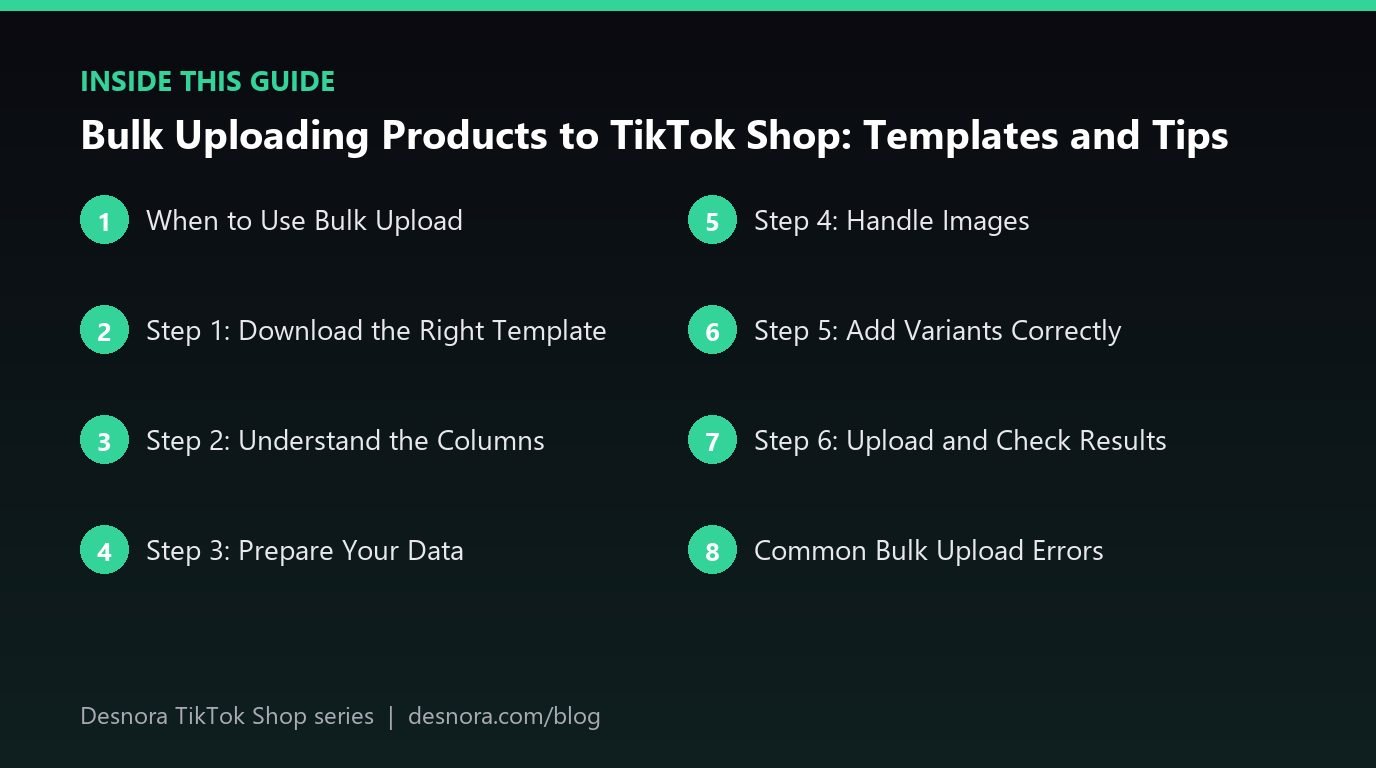
Step 6: Upload and Check Results
Upload the completed file. The system typically processes it and returns a result report showing successful rows and errors. Download the error report, fix the problem rows and re-upload only those. Then check a sample of successful listings in the app to confirm images, variants and prices display correctly.
Common Bulk Upload Errors
- Missing required fields: leave no required cell empty.
- Invalid attribute values: use values from the allowed lists where dropdowns exist.
- Broken or invalid image links: test links and check image specs.
- Duplicate SKU codes: every SKU must be unique.
- Wrong number formats: prices, weights and stock must be plain numbers without currency symbols.
- Prohibited words: promotional or medical claims in titles and descriptions.
- Category mismatches: using a template for the wrong category.
Our guide to common Seller Center errors covers more fixes.
Bulk Editing Existing Listings
Many sellers use bulk tools to update existing products, especially prices and stock. Download the current listing data, edit only the fields you need and upload it back. Be careful: bulk edits can overwrite data unintentionally. Keep a backup of the original export, and change one thing at a time.
Bulk Uploads and Listing Review
Bulk-uploaded products still go through listing review. A large upload may take time to review, and some listings may be rejected individually. Plan uploads ahead of launches rather than the day before. Our listing review guide explains timing.
A Worked Example: Uploading a New Range
Suppose a home fragrance brand is launching twelve new candles, each in two sizes. That is twelve products and twenty-four SKUs. The team starts by adding the new range to its master catalog: titles, descriptions, scent notes, burn times, weights, dimensions, barcodes, prices and SKU codes. Images are shot, edited to the required specifications and uploaded so each has a working link.
Next, the team downloads a fresh template for the candles category, reads the instructions tab and pastes values from the master catalog into the template, two rows per product. They upload the file and receive a result report showing twenty-two successful rows and two failures: one image link was broken and one burn time was entered as text instead of a number. They fix those two rows, re-upload only those, then open five random listings in the TikTok app to confirm images, sizes and prices look right. The whole range goes into review three days before launch, leaving time to fix any rejections.
Bulk Price and Stock Updates Before Campaigns
Bulk tools are especially useful before big campaigns, when many prices and stock levels change at once. Rather than editing listings one by one under time pressure, prepare the new values in your master sheet a few days ahead, export current data, update only the price or stock columns and upload. Remember that campaign discounts are often set separately in the promotions area, so you may not need to change list prices at all. Changing list prices right before a campaign can also affect how discounts are calculated and displayed. Our promotions setup guide explains how discounts work.
Translating and Localising Bulk Data
Sellers expanding into new markets often reuse one master catalog for several shops. Titles and descriptions should be properly translated and localised, not machine-translated word for word, and units should match local conventions. Category attributes can also differ between markets, so download that market's template rather than copying another market's file. Our guide to international expansion covers market differences.
Who Should Own Bulk Uploads
Bulk tools are powerful, which means one mistake can affect hundreds of listings. Give bulk upload and bulk edit rights to one or two trained people, keep a log of every upload with its date and purpose, and always keep the previous export as a backup. If something goes wrong, you can restore the old data quickly. Our guide to user roles and permissions explains how to limit access.
Spreadsheet Tips
- Save files in the format the template requires and avoid adding or renaming columns.
- Remove line breaks or special characters that the template does not support.
- Use formulas in a separate master sheet, then paste values into the template.
- Check encoding for non-English characters.
Keeping a Master Catalog
A single master catalog containing every product's data, owned by one person, is the best defence against inconsistent listings. Use it to generate templates for TikTok Shop and other channels, so updates happen once and flow everywhere.
Bulk Upload Checklist
- Download fresh category templates.
- Read the instructions tab.
- Prepare clean data in a master sheet.
- Prepare working image links.
- Structure variant rows exactly as instructed.
- Upload, review error reports and fix rows.
- Spot-check live listings in the app.
Desnora builds and maintains TikTok Shop catalogs for brands of every size. Explore our TikTok Shop services or contact us.
Frequently Asked Questions
Can I bulk upload products to TikTok Shop?
Yes. Seller Center offers bulk tools using category-specific spreadsheet templates in many markets.
Why does my bulk upload fail?
Common reasons include missing required fields, invalid attribute values, broken image links, duplicate SKUs and wrong number formats.
How do I add images in a bulk upload?
Templates usually need image URLs or media library IDs rather than files. Make sure links work and images meet specs.
How are variants handled in bulk templates?
Typically as multiple rows sharing a product identifier, each row representing one SKU. Follow the template instructions exactly.
Can I bulk edit prices and stock?
Yes, in many markets. Export current data, edit only the needed fields and keep a backup before uploading.
Do bulk-uploaded listings need review?
Yes. They go through the same listing review as individually created products.
Should I use an old template?
No. Download a fresh template each time, as fields and requirements change.
Is an integration better than bulk upload?
If you already sell on another platform, an integration often saves more time and keeps data in sync.
Can I upload products in different categories at once?
Templates are usually category-specific, so you may need separate files for each category.
How do I find the error rows?
Download the result or error report after upload, which lists failed rows and reasons.
How long does a bulk upload take to go live?
Processing is usually quick, but listings still pass through review, which can take longer for large uploads or sensitive categories. Upload well before launch dates.
Can I undo a bulk edit?
There is usually no single undo button. Keep the export you took before editing so you can re-upload the original values if something goes wrong.